Before Epiteera can run a Microsoft 365 Security Health Check on your tenant, it needs your organisation's permission to read the relevant data. Microsoft enforces this through a process called admin consent; a one-time approval that a sufficiently privileged administrator must grant.
Why admin consent is required
Epiteera reads configuration data from your Microsoft 365 environment; things like conditional access policies, device configurations, sharing settings, and identity hygiene signals. Microsoft 365 protects this data at the tenant level, meaning no third-party application can access it without an explicit, organisation-wide approval from an administrator. This is a standard Microsoft security requirement that applies equally to all applications that integrate with Microsoft 365.
Signing in for the first time
When you open Epiteera and click Sign in, you are redirected to Microsoft's login page and authenticate with your usual work account. Epiteera never sees your password! Authentication is handled entirely by Microsoft.
Once you are logged in, Epiteera reads the roles embedded in your identity token and immediately determines whether you hold a privileged directory role or are a standard user. This determines which setup experience you see next.
Select your role to see the relevant steps:
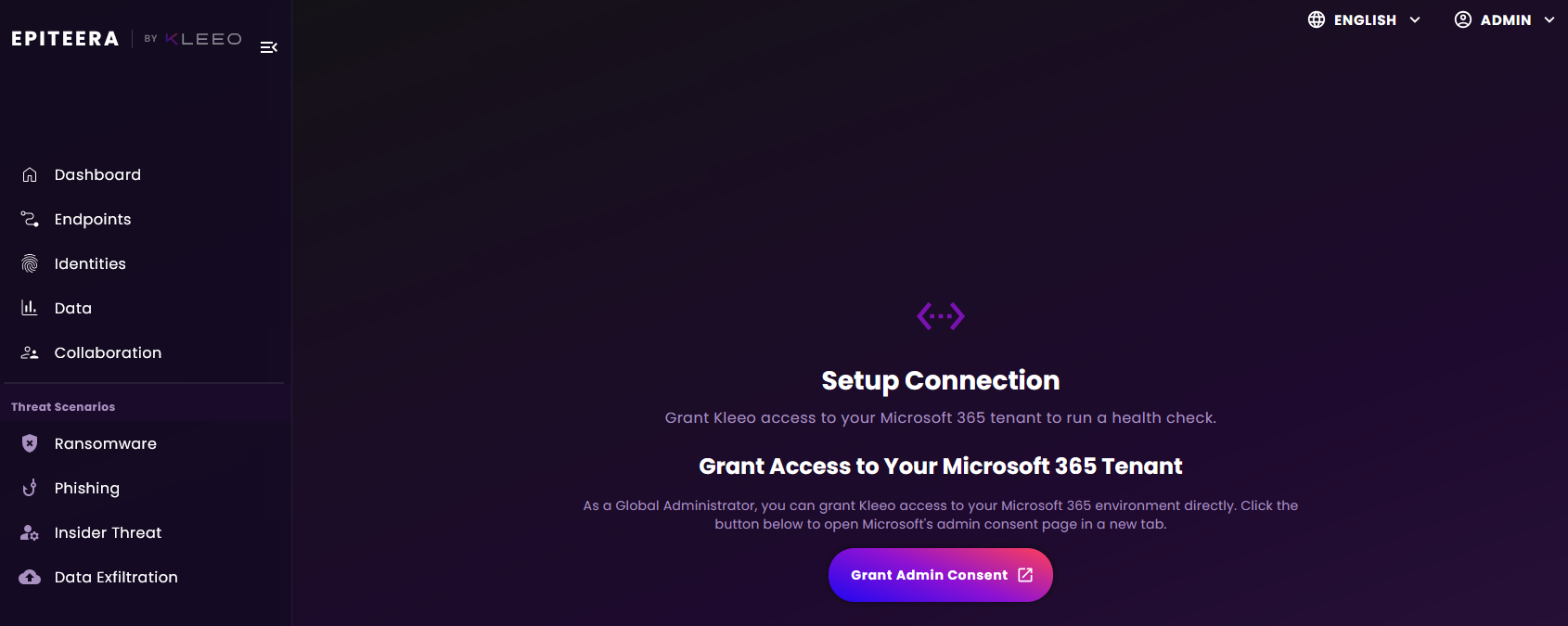
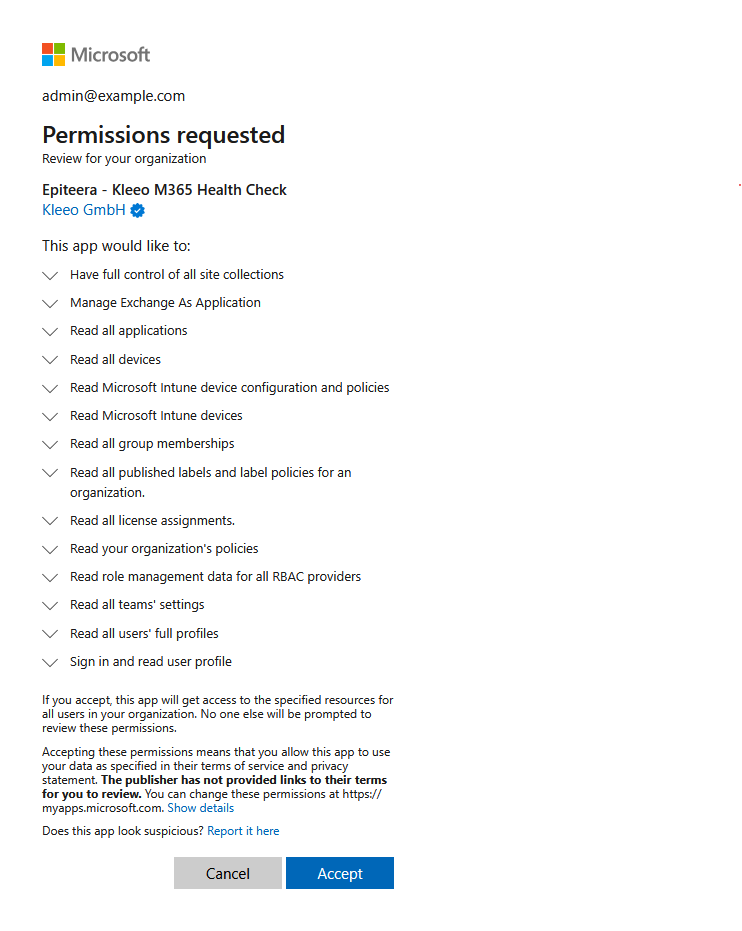
Because you do not hold a privileged directory role, Epiteera cannot complete the setup on your behalf. Only an administrator can grant the required permissions. The setup dialog walks you through getting an admin to approve on your behalf.
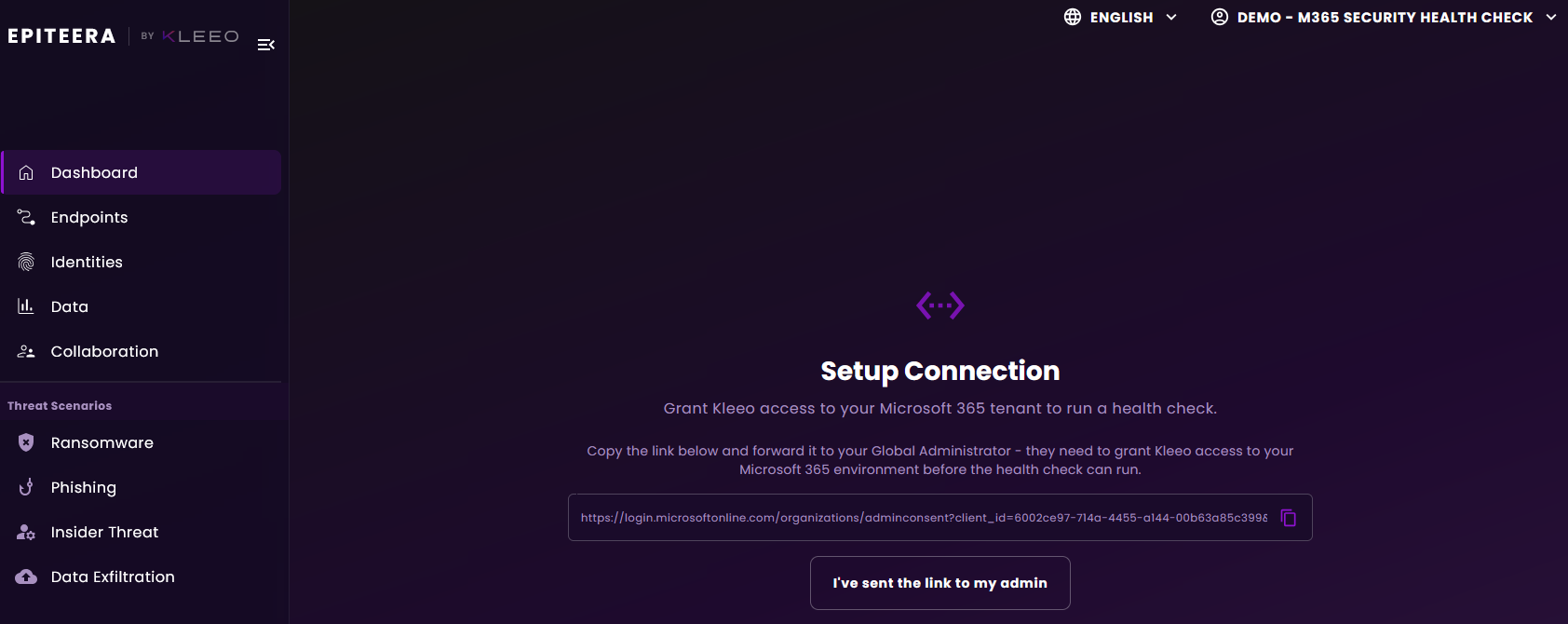
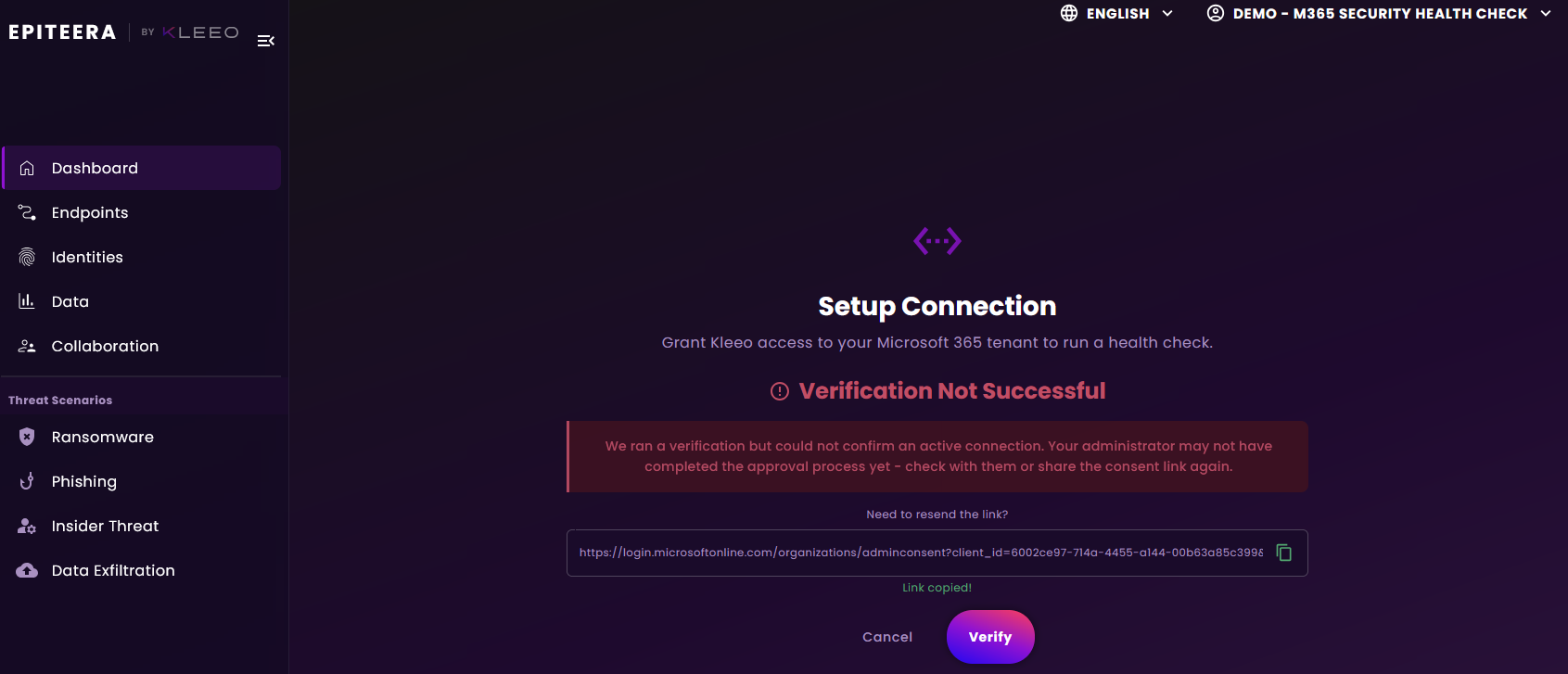
Instead of a consent button, you see a copyable link. This is a pre-generated, one-time consent URL tied to your setup session. Copy it and forward it to your Global Administrator - by email, Teams message, or whichever channel you normally use.
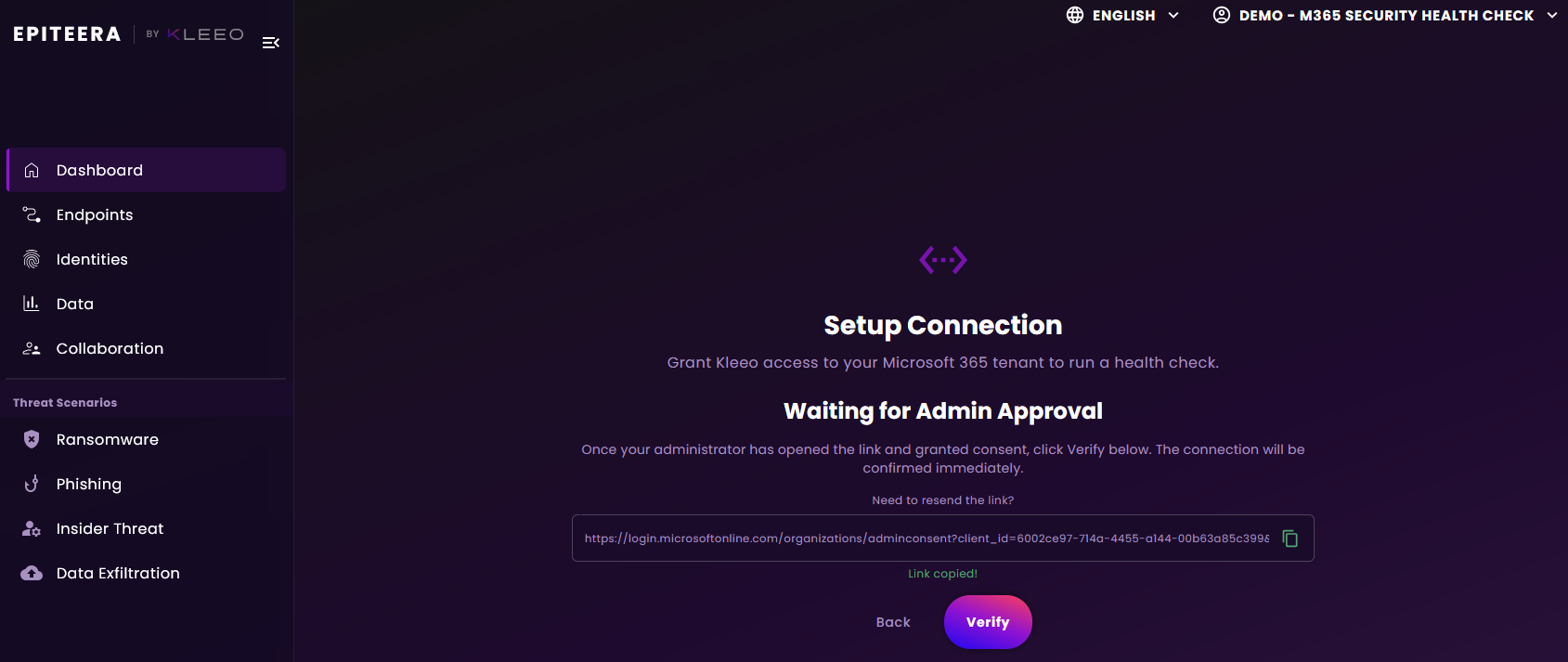
Once you have sent the link, click I've sent the link to my admin. The dialog moves into a waiting state.
Your administrator opens the link in their browser. If they are not already signed in to Microsoft, they are prompted to do so. They then see Microsoft's consent page, review the requested permissions, and click Accept. No further action is needed from them after that.
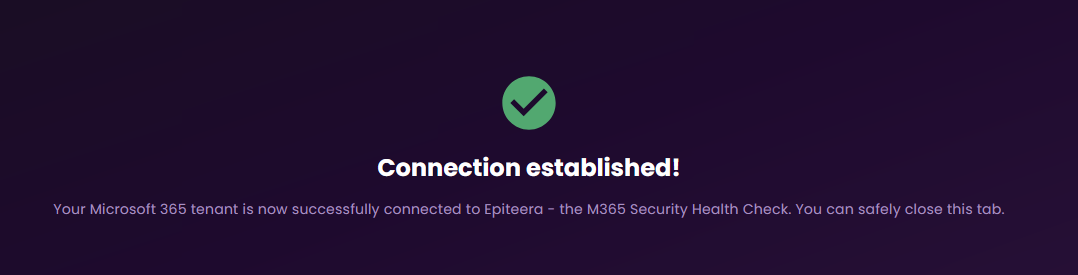
After the administrator grants consent, your able to Verify the connection. If your administrator has completed the step, the verification will succeed and you can start your first health check.
If they have not finished yet, you see a verification-not-successful message with the option to re-share the link and try again.
Security note
Epiteera never stores your Microsoft credentials. All authentication is handled by Microsoft's own identity platform (Microsoft Entra ID). The permissions granted during admin consent are the minimum necessary to run the health check, and you can review or revoke them at any time from the Microsoft Entra admin centre under Enterprise Applications.
Ready to run your first health check? Sign in and follow the setup flow above - it takes less than two minutes.
Start your free Health Check